

User manual
Introduction
My Account
My Timelines
Create and edit a timeline
Export and import
Create and edit an event or period
Vertical view
Horizontal view
Troubleshooting
Create and edit an event or period
Create an event or period
From the timeline editing page, click the New event button.
Edit an event or period
From the editing page, you can create new events or modify existing events and periods.
An event represents something that happens at a specific moment. A period represents something that takes place between a start date and an end date.
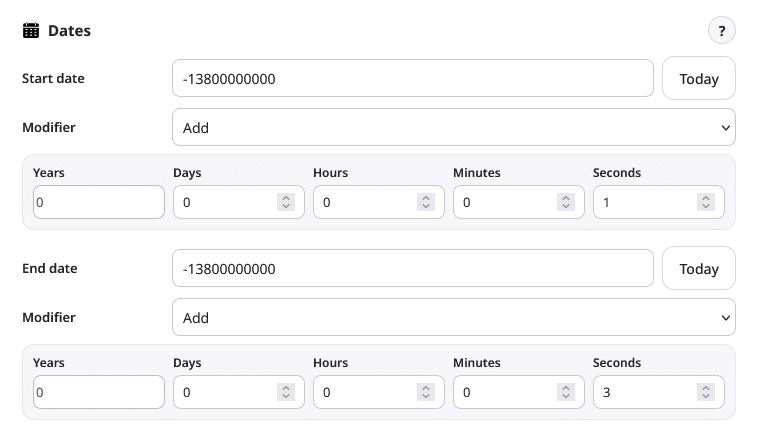
Dates
Dates determine where the event or period is positioned within the timeline.
An event requires a start date. If you also add an end date, TimeDivers will treat it as a period.
Supported formats
TimeDivers supports several date formats. To view them, use the help window available next to the date fields.
This help displays the accepted formats and serves as a reference when you want to enter complete dates, individual years, historical dates, negative years or dates with hours and minutes.
The Today date
The special Today date lets you link a date to the current day.
It is useful for creating live periods: periods that remain open and whose end date must update automatically as time passes.
For example, a political term of office, an ongoing project or a person’s lifetime can be represented by a period whose end date is Today.
Modifiers
Modifiers let you calculate a date from another reference date.
They can be used to add or subtract years, days, hours, minutes or seconds, allowing you to represent relative events without calculating each date manually.
For example, an event can be positioned:
- 3 days after another event.
- 2 hours, 30 minutes and 15 seconds after a base date.
- 1 week before the start of a period.
- 45 seconds after a call, meeting, alert or any other reference point.
Modifiers are also particularly useful for representing complex processes, investigations, legal chronologies or projects in which many events depend on a main date.
In the vertical and horizontal views, events and periods that use modifiers automatically calculate their chronological position from the reference date, so they are always displayed in the correct position relative to the item on which they depend.
Content
Each event or period has a title and a description.
The title should clearly identify the event, stage or process you are adding to the timeline.
The description lets you add context, explanations, sources or any information needed to understand the event or period more fully.
There is no practical limit to the length of the description. TimeDivers is designed not only to represent chronologies but also to store detailed information, so it can be used as an encyclopedic documentation and reference tool.
You can include URLs in the description. TimeDivers will automatically interpret them as links when the content is displayed.
These links can point to:
- External web pages.
- Other events in the same timeline.
- Events or periods belonging to other TimeDivers timelines.
This lets you create relationships between events and build interconnected information networks.
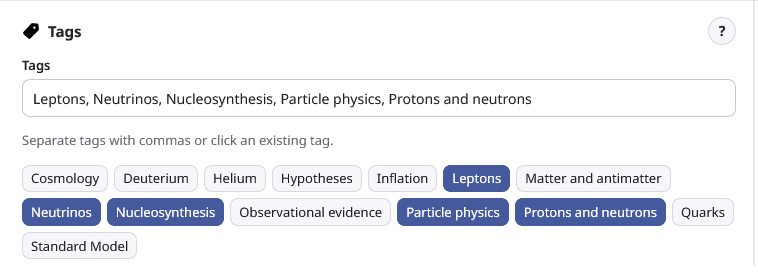
Tags
Tags are used to classify events and periods.
You can use them to organize content by subject, stage, person, place, type of event or any other criterion useful for your timeline.
Tags are specific to the timeline you are editing and are not automatically shared with other timelines in your account.
You can create as many tags as you need.
Tags also help you filter and find information in the different timeline views.
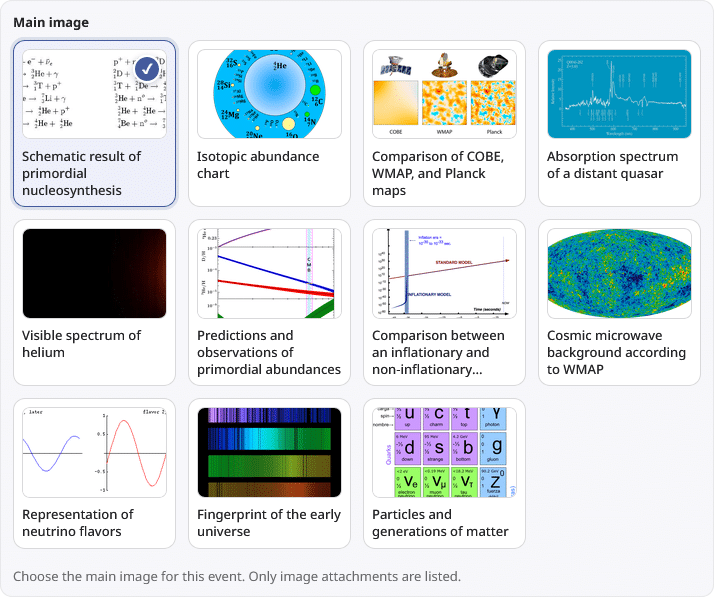
Attachments and main image
Attachments let you associate files with an event or period.
You can use them to add images, documents or other materials related to the event’s content.
When an event has attached images, you can select one of them as the main image. This image will be used as the event or period’s prominent visual reference in the different timeline views.
When adding images, TimeDivers lets you complete attribution information such as the author, source, license or corresponding URLs. This information helps you meet attribution requirements and correctly document the origin of the materials used.
Before uploading files or images, make sure you have the right to use them.
External resources
External resources let you associate content hosted on other platforms without uploading it to TimeDivers.
Videos can currently be added from:
- YouTube
- Vimeo
Simply enter the corresponding URL and TimeDivers will add the video to the event or period.